Jun
19
2010
I updated WordPress on here to version 3.0 and all my internal images disappeared from the posts. After a painful search I figured out WordPress was camel-casing “Wordpress” to “WordPress.” So my WordPress was installed by my hosting service as Wordpress NOT WordPress. So all pictures were now stored in a directory that WordPress couldn’t see. Changing the upload location with the Admin, Misc area didn’t work either.

Well anyway, on to fixing this. This bug (yes its a bug in case some idiot thinks this was helpful) is known and being address by the good folks that work on WordPress or should I say WordPress. Should be fixed by their next update. In the mean time, there is a plug-in which disables camel-casing in WordPress. In the Admin section, add new plug-in and search for
“remove-wordpress-to-wordpress-filter” then install. Or go here to FTP it. http://wordpress.org/extend/plugins/remove-wordpress-to-wordpress-filter/
This should restore your images once active.
Another possible solution is getting rid of the “capital_P_dangit” function. Add this code to your functions.php file.
remove_filter('the_content','capital_P_dangit');
remove_filter('the_title','capital_P_dangit');
remove_filter('comment_text','capital_P_dangit');
Comments Off on WordPress 3.0 images disappear after upgrade | tags: WordPress 3.0 images disappear, Wordpress Camel-Case, Wordpress CamelCase, Wordpress Images not appearing, Wordpress pictures gone | posted in Computers Technology, Wordpress
Jun
16
2010
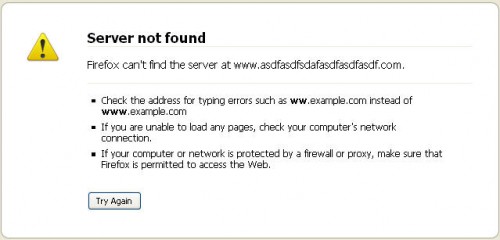
I noticed my site and some others did not show up at certain times or I would randomly get redirected to http://finder.cox.net. I would not be able to log in for hours sometimes then it would just come back. At first I thought my new domain just sucked. Then I figured out I could connect to it through most any proxy server (http://anonymouse.org etc) which narrowed it down some for me. Long story short, it was the DNS (Domain Name Server for the non geeks). It was being hijacked by Cox Cable. Finder.cox.net shouldn’t be showing up if a site doesn’t exist or has issues. You should see something like this:
Instead I see http://finder.cox.net showing me a bunch of basically useless links. The links go through a Yahoo marketing site. So, my DNS has been hijacked AND forces me through useless links that make money for Cox. It also makes my web surfing intermittent at best. Did I mention its all for their marketing and profit? I am not happy about this. I am sure emailing them will do nothing so I just bypass their scheme.
Not sure how to do this? There are several ways. As a matter of fact, there are way more than I will list here.
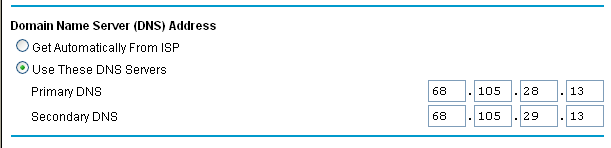
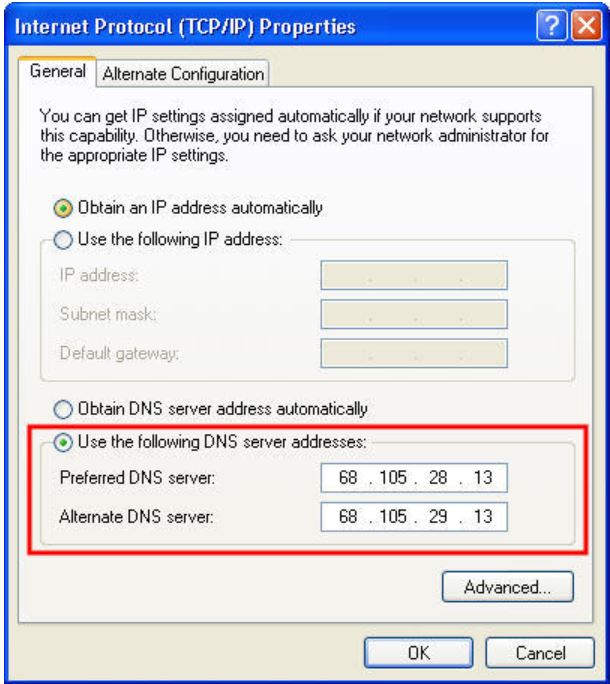
If you have a router, set your DNS manually to use DNS addresses from OpenDNS, Google, or here are Cox.net’s alternate addresses as set in my router (default one for cox were same except last 2 digits were 12):

I don’t actually use that as I prefer to use OpenDNS http://www.opendns.com/
I have also successfully tested Google public DNS servers using these setting in my router rather than having to change each computer:
Primary 8.8.8.8
Secondary 8.8.4.4
If you only want to fix one computer or don’t use a router try this method using the numbers mentioned above:
To use Cox alternate DNS servers (click picture if you don’t know how to get to this screen…thanks to Nate):
1 comment | tags: Cox hijacking, Cox’s 404 Hijacking, DNS hijacking, web site show imtermitantly, website not showing up | posted in Computers Technology, General
Apr
26
2010
Just a note for adding flag counter to WordPress.

1. Click image above to go to flagcounter.com.
2. Click “Get Yours” then customize it to match the look of your WordPress site.
3. It generates 2 codes, take the “Code for websites” one and copy it to your clipboard.
4. Go to your WordPress dashboard, then Appearances, Widgets, drag a TEXT widget to the sidebar (or wherever you want this counter to appear).
5. After you click on TEXT box you just added, it will open up to allow a title and text. Don’t give it a title (looks better) and just paste code in text box and save.
5. You should now have a flag counter on your blog. The site now has other option to paste to specific blog sites, but the above works for average users of WordPress.
Comments Off on Add Flag Counter to WordPress | posted in Wordpress