Jun 28 2011

Social Security Number Randomization

SSA logo: link to Social Security Online home

Social Security Number Randomization

The Social Security Administration SSA is changing the way Social Security Numbers SSNs are issued. This change is referred to as “randomization.” The SSA is developing this new method to help protect the integrity of the SSN. SSN Randomization will also extend the longevity of the nine-digit SSN nationwide.The SSA began assigning the nine-digit SSN in 1936 for the purpose of tracking workers’ earnings over the course of their lifetimes to pay benefits. Since its inception, the SSN has always been comprised of the three-digit area number, followed by the two-digit group number, and ending with the four-digit serial number. Since 1972, the SSA has issued Social Security cards centrally and the area number reflects the state, as determined by the ZIP code in the mailing address of the application.There are approximately 420 million numbers available for assignment. However, the current SSN assignment process limits the number of SSNs that are available for issuance to individuals by each state. Changing the assignment methodology will extend the longevity of the nine digit SSN in all states. On July 3, 2007, the SSA published its intent to randomize the nine-digit SSN in the Federal Register Notice, Protecting the Integrity of Social Security Numbers [Docket No. SSA 2007-0046].SSN randomization will affect the SSN assignment process in the following ways: It will eliminate the geographical significance of the first three digits of the SSN, currently referred to as the area number, by no longer allocating the area numbers for assignment to individuals in specific states. It will eliminate the significance of the highest group number and, as a result, the High Group List will be frozen in time and can be used for validation of SSNs issued prior to the randomization implementation date. Previously unassigned area numbers will be introduced for assignment excluding area numbers 000, 666 and 900-999.These changes to the SSN may require systems and/or business process updates to accommodate SSN randomization.If you have any questions regarding SSN randomization or its possible effects to your organization, please see the related Frequently Asked Questions or email your questions to ssn.randomization@ssa.gov.

via Social Security Number Randomization.


May 28 2011

WordPress Host Transfer

This was by far the most useful page I found for transferring WordPress to a new host.

Originally posted here.

I have seen many requests online on how to move a WordPress blog to a new server or host- including requests from some of my readers.

wordpress logo thumbnail How To Move WordPress To A New Server Or HostIt seems as though the easy part is transferring the files. What most people find difficulty with is moving their WordPress database to the new server or hosting company.

While there are other tutorials available online, many seem to lack clear instructions on how to move your blog. In this tutorial, I’m going to take you step-by-step and show you exactly how to move your WordPress blog to a new server or host.
Continue reading


Aug 31 2010

WordPress update error – Could not create public_html

If you get: “Could not create directory. /public_html” in WordPress then FTP to wp-content -> upgrades folder.

Delete it and then recreate it. Properties should be set to 777   (chmod 777).


Jul 11 2010

Giganews or other “481 SSL not allowed” error

Getting SSL errors or dont even have SSL but getting the error when trying to connect to Giganews or other similar services? If you use Avast anti virus, then its blocking your connection.

To correct:

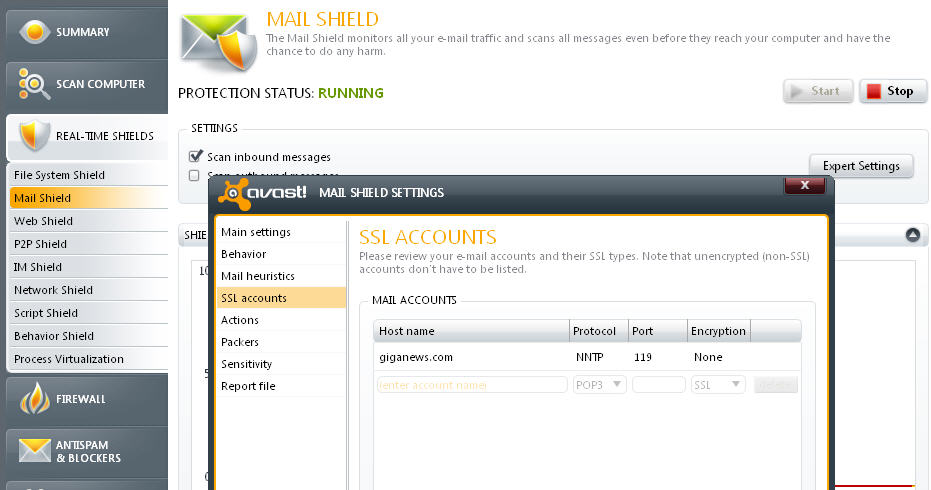
Giganews (or other) should be listed in avast under real time shields/mail shield/expert settings/ssl accounts.  If you don’t require SSL for your newsgroup, then change the avast Mail Shield, Expert Settings, SSL Accounts setting for that NNTP account to Encryption “None.”  You may need to set it to port 119 as well if its been changed to something else.


Jun 20 2010

Make MP3s show up on iPhone, iTouch, & iPod as a Podcast or Audio Book

Why? I travel a lot and use my iPhone for music, audio books, & movies.  My audio books, or books on CD, are in MP3 format and show up all jumbled in with my music if I don’t do anything to them.  By converting them to Podcast (or tricking iPhone into thinking its a Podcast) they show up under the Podcast section.  They show up in order and with a nice pic if you edit the tags as I did in the example below.  I’ll also show how to make them into one large Audio book.

Podcast stuff first.  Try this method first: In ITunes, if you right click on multiple files in your music area, go to “Get Info” and then “Options,” you can click the checkbox for “Media” and change media to Podcast. Your mp3 files will now be recognized as a Podcast.  If no luck try the following:

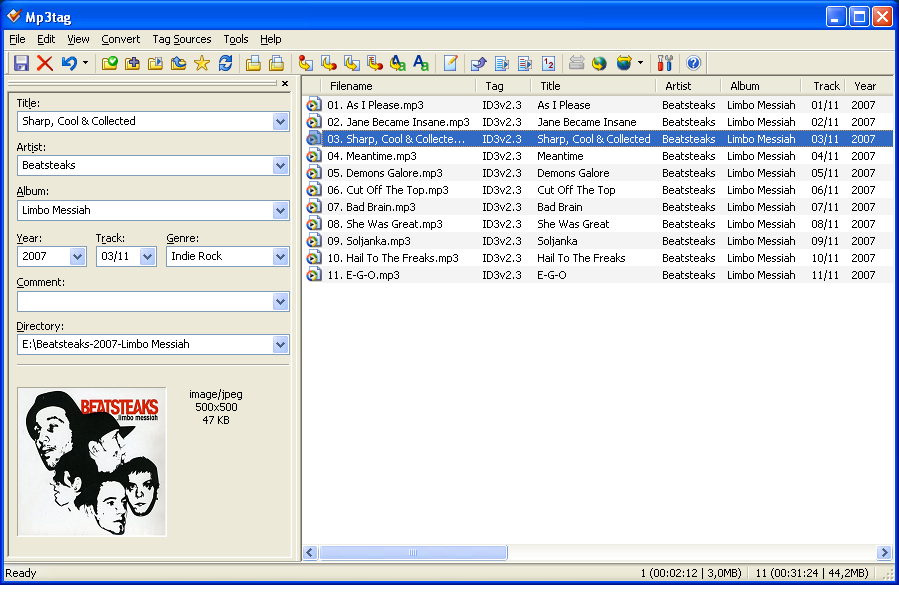
You need something to edit the tags on the MP3.  I use MP3Tag. Free & you can download here:

http://www.mp3tag.de/en/

Once installed, use the program to open the folder containing the MP3s you want to change. Back all these files up first until you get the hang of this.

In this scenario I had 3 folders and one image that I wanted to insert that would show up on my iPhone.  Once all the files from the first folder are loaded, either select one file or all of them. I would select all of them because initially you have to make some changes to all files. Then you will have to go back and differentiate each file by using 1 of XX, etc.  More on that later.

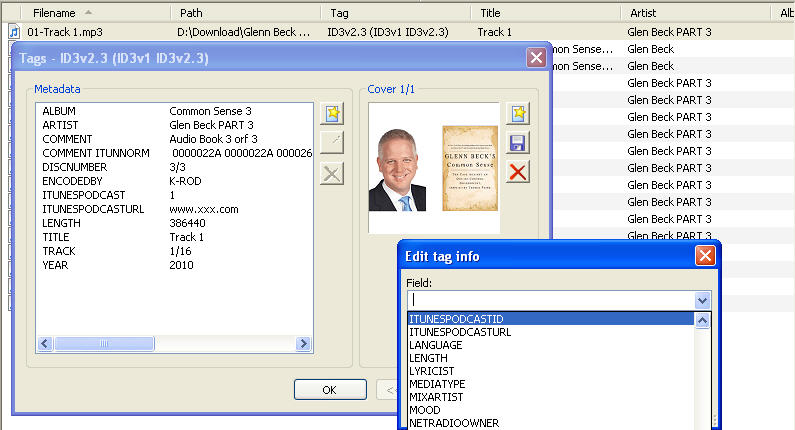
Once you’ve selected one or all files, right click and select EXTENDED TAGS.  Now your file details will be presented. Click the “ADD field” button (has a yellow star in my version). Now your should see something like this (click to enlarge):

You need to add 2 fields.  Add ITUNESPODCAST then set value to 1.  Now add ITUNESPODCASTURL and give it any legal URL. I used a different audio book in this example and gave it a URL of www.xxx.com.  I used Glen Becks Common Sense for this example.  Good book by the way.

Now you could add a photo from this window as well, over on the right using a similar button.

Optional: : RELEASETIME – is good for sorting correctly, eg 2010-03-03T12:00:00Z

While you are here, now is when you can double-click a field and add Album, Artist, and Disk Number.  I gave each album the title of the book then added a number for each additional folder. If you had 3 folders of MP3s you could name the first folder you edit as “MyBook,” then the second one as “MyBook2” and so on.  This puts all MP3s from that folder together on the iPhone.  I did it this way because each folder had MP3s with identical names and I didn’t feel like changing them.  You could rename all the Mp3s so they flow in order or make one giant MP3.  Those are for a different tutorial.  So now we need to finish cleaning up the tags so each one is slightly different.  I made sure the “Track” was set for each file in order, like 1/9, 2/9, etc. I also added a year if there was not one there, Disk number X of X,  and I plugged something into the “EncodedBy” field.  Now they should show up as Podcasts in your iPhone or other device. Enjoy.

OK,  now what if you had 70 MP3 files all with different names and numbered, unlike the example above? In that case, I would make them into an audio book.  The method above was used because I had multiple folders and many file had the exact same name, but placed in different folders.  I didn’t want to take the time to rename them all. If I did I would use this method.  The is another free piece of software; Mp3 to Audiobook converter.

Open it, then within the program open the folder with all your MP3 files.  Move the individual files (if needed) so they are in the correct order. Then have the program convert it for you.  It will create one large .M4b file for you. This will show up in iTunes.  To sync it, it will be under the Music tab.  Easy huh?  If you want to edit chapter or add album work, another free program is Chapter & Verse.


Jun 19 2010

WordPress stuck in maintenance mode

Only about half my updates work automatically. I blame my shared hosting service more than WordPress. Sometimes it gets stuck in maintenance mode. It does take  a few minutes sometimes to get out of that mosde for some reason. Im usually in a hurry too.

Simple fix is FTP to your WordPress directory and a file has been created during  maintenance called .maintenance (pretty creative huh?).  Delete the file and you’ll get back in.