Make MP3s show up on iPhone, iTouch, & iPod as a Podcast or Audio Book
Why? I travel a lot and use my iPhone for music, audio books, & movies. My audio books, or books on CD, are in MP3 format and show up all jumbled in with my music if I don’t do anything to them. By converting them to Podcast (or tricking iPhone into thinking its a Podcast) they show up under the Podcast section. They show up in order and with a nice pic if you edit the tags as I did in the example below. I’ll also show how to make them into one large Audio book.
Podcast stuff first. Try this method first: In ITunes, if you right click on multiple files in your music area, go to “Get Info” and then “Options,” you can click the checkbox for “Media” and change media to Podcast. Your mp3 files will now be recognized as a Podcast. If no luck try the following:
You need something to edit the tags on the MP3. I use MP3Tag. Free & you can download here:
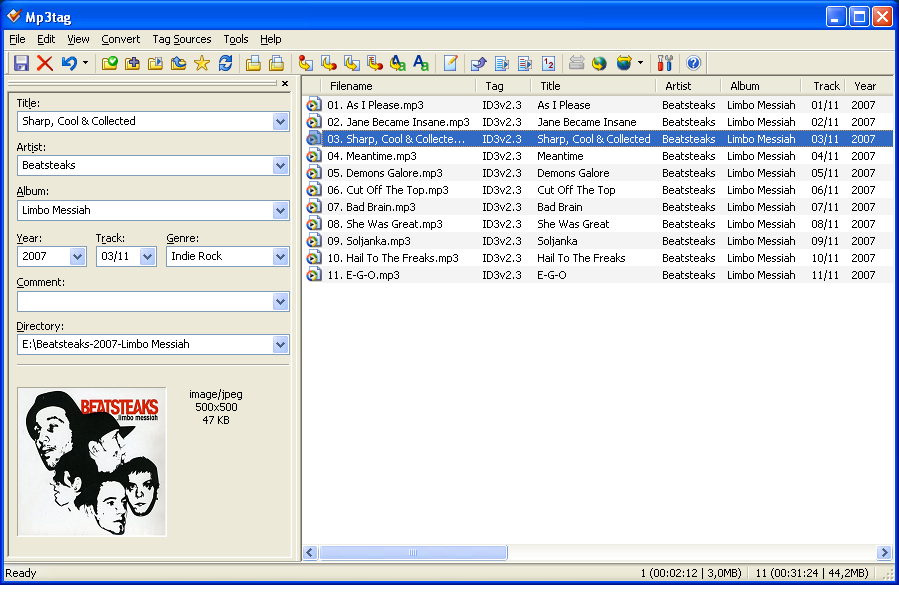 Once installed, use the program to open the folder containing the MP3s you want to change. Back all these files up first until you get the hang of this.
In this scenario I had 3 folders and one image that I wanted to insert that would show up on my iPhone. Once all the files from the first folder are loaded, either select one file or all of them. I would select all of them because initially you have to make some changes to all files. Then you will have to go back and differentiate each file by using 1 of XX, etc. More on that later.
Once you’ve selected one or all files, right click and select EXTENDED TAGS. Now your file details will be presented. Click the “ADD field” button (has a yellow star in my version). Now your should see something like this (click to enlarge):
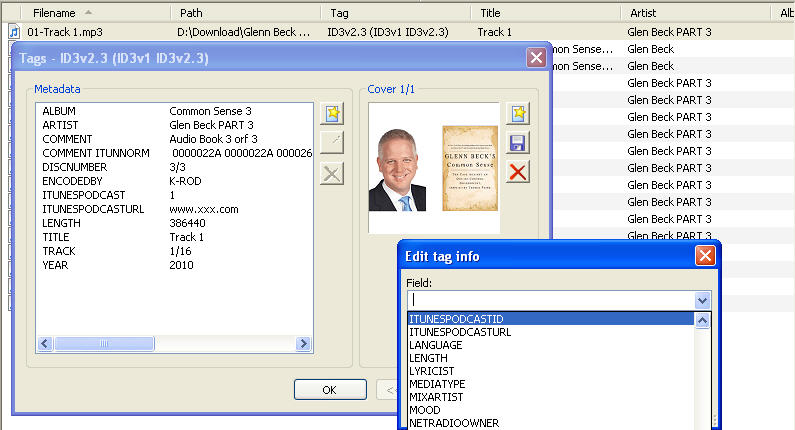 You need to add 2 fields. Add ITUNESPODCAST then set value to 1. Now add ITUNESPODCASTURL and give it any legal URL. I used a different audio book in this example and gave it a URL of www.xxx.com. I used Glen Becks Common Sense for this example. Good book by the way.
Now you could add a photo from this window as well, over on the right using a similar button.
Optional: : RELEASETIME – is good for sorting correctly, eg 2010-03-03T12:00:00Z
While you are here, now is when you can double-click a field and add Album, Artist, and Disk Number. I gave each album the title of the book then added a number for each additional folder. If you had 3 folders of MP3s you could name the first folder you edit as “MyBook,” then the second one as “MyBook2” and so on. This puts all MP3s from that folder together on the iPhone. I did it this way because each folder had MP3s with identical names and I didn’t feel like changing them. You could rename all the Mp3s so they flow in order or make one giant MP3. Those are for a different tutorial. So now we need to finish cleaning up the tags so each one is slightly different. I made sure the “Track” was set for each file in order, like 1/9, 2/9, etc. I also added a year if there was not one there, Disk number X of X, and I plugged something into the “EncodedBy” field. Now they should show up as Podcasts in your iPhone or other device. Enjoy.
OK, now what if you had 70 MP3 files all with different names and numbered, unlike the example above? In that case, I would make them into an audio book. The method above was used because I had multiple folders and many file had the exact same name, but placed in different folders. I didn’t want to take the time to rename them all. If I did I would use this method. The is another free piece of software; Mp3 to Audiobook converter.
Open it, then within the program open the folder with all your MP3 files. Move the individual files (if needed) so they are in the correct order. Then have the program convert it for you. It will create one large .M4b file for you. This will show up in iTunes. To sync it, it will be under the Music tab. Easy huh? If you want to edit chapter or add album work, another free program is Chapter & Verse.
