Jul 10 2012

WordPress Login Not Working After Making A Change to URL Address Under General Settings

After making a slight change under GENERAL – SETTINGS, my site crashed.

I removed the “wp” from WordPress Address (URL) and after updating, the site crashed.  Not cool.  There are a few ways to fix it, but the easiest way if you have FTP access to the site is:
Continue reading


Jul 10 2012

How to Remove Hard-Coded Home Tab (I had 2 HOME tabs after static page started)

After creating a static page called “Home,” I ended up with 2 tabs with the same name because one is hard coded into the header.php file.  Each theme may be slightly different, but for mine I went to APPEARANCE, then EDITOR while logged into WordPress as Admin.

On the right side I clicked header.php and scrolled until I found some code that I could comment out then test it.  For my theme (currently Elegant Grunge) it looked like this:

<ul>
<li><a href=”<?php bloginfo(‘url’); ?>”><?php _e(‘Home’, ‘elegant-grunge’) ?></a></li>
<?php wp_list_pages(‘title_li=&depth=1’); ?>
</ul>

So I remarked  some of the code so it would not be read. This is done with <!– before the start of the code and –> at the end. Now mine looks like this:

<ul>
<!–        <li><a href=”<?php bloginfo(‘url’); ?>”><?php _e(‘Home’, ‘elegant-grunge’) ?></a></li>
–>
<?php wp_list_pages(‘title_li=&depth=1’); ?>
</ul>

One last problem after I corrected this was my tabs were not in the order I wanted. You have to go back into PAGES and click EDIT under your page you want to be first.  Over on the right side is an ORDER box with a number.  This is the order you want the page to appear in the tabs, starting with zero showing first.  I put 0 in my page I want first then 1 in the next pages ORDER box and so on.


Jul 10 2012

Change Windows XP Explorer Default Folder

  1. Click on Start button, then go to All Programs, and finally Accessories. If you’re using Windows Explorer shortcut at another location, such as Quick Launch bar or Desktop, skip this step.
  2. Right-click on Windows Explorer (or its shortcut) and then click Properties.
  3. In Windows Explorer Properties, click on Shortcut tab if you’re not already there.
  4. The text box after “Target” by default will shown the value as below:%SystemRoot%\explorer.exeChange the Target text box parameter to the following:

    %SystemRoot%\explorer.exe /n, /e, <New Path>

    where <New Path> represents the full path to the new different folder that you want Windows Explorer to open as default folder on launch. The spaces must not be omitted.  I use %SystemRoot%\explorer.exe /n, /e, D:\Download\

    For example, if you want Windows Explorer to run and show C:\ folder, the Target path should be like this:

    %SystemRoot%\explorer.exe /n, /e, C:\

    Or you if you want Windows Explorer to go directly to C:\MyFolder\ directory, the line should read as below:

    %SystemRoot%\explorer.exe /n, /e, C:\MyFolder\

    A special case is to change the default setting so that all top–level drives and folders are shown. To show this folder view, use the following as Target shortcut so that when WindowsExplorer is opened, you can choose from all the folders and drives, not just My Documents:

    %SystemRoot%\explorer.exe /n, /e, /select, C:\

    The above syntax for the Target with “/select” to open parent folder of the destination folder so that you can “select” from all folders (or drives) that are available on the same level of directory structures.

  5. Click OK.

This works on most Windows operating system, including Windows XP and Windows Vista.


May 24 2012

Mozilla Firefox Update Tab Keeps Starting

I had updated Firefox and had this issue.  It was annoying to see the update tab start every time. There are a couple of reasons this may happen. First, check the obvious, did you accidentally make it your homepage (ie where Firefox starts)?

This was not the case with me.  In my case the preferences file had been corrupted somehow.  I am not sure how this happened as it was a new machine.

FYI, This will remove all your custom settings and settings for many extensions.

Locate and delete a file called “prefs.js.” I just renamed it then deleted it later.

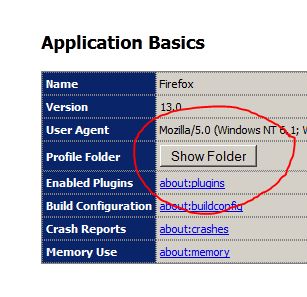
At the top of the Firefox, click the HELP menu and select Troubleshooting Information. The Troubleshooting Information tab will open and click the button SHOW FOLDER. 


A folder with your profile files will open.  Also delete the “prefs.js.moztmp” file if you have one.   You will need to delete all “prefs-?.js” files (where ? is a number) as well.  Mine was “prefs-2.js” for example.  If it exists, delete “Invalidprefs.js” also.

Now restart Firefox and it will create a new “pref.js” file for you and the problem should be gone.


If this did not work for you, try some other options:  Firefox Link #1   or Firefox Link #2


Nov 20 2011

The Cylon Voice – EMS Vocoder


Jul 8 2011

Clear Microsoft Word Properties In A Click

Clear Word Properties In A Click

Every time you create a Microsoft Word document, it saves its properties too. By default, Microsoft Word will fill the properties with you registration name and company name. Unfortunately, you don’t always want it. Maybe you want set document properties with nothing or with yours. Whatever you choose, you must clean it first but if you must clean it every time you create a document, that’s not a good idea. You can make a macro to make it with a click.

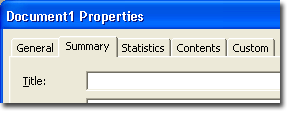
To check your properties of document word, you can open it through File – Properties menu in Microsoft Word.

File - Properties menu

then you can look the properties.

Properties dialog

And here are the steps to create a macro that can wipe you properties entries in a click:

1. Open Microsoft Word first, then open VB Editor to create a macro by click Macro – Visual Basic Editor menu.

Visual Basic Editor menu

Visual Basic Editor menu

2. In Visual Basic Editor, create a module by click Insert – Module menu.

Insert module menu

3. Then type this script:

Sub wipe_prop()
Dim my_prop As DocumentProperty
On Error Resume Next ‘to make it silent
For Each my_prop In ActiveDocument.BuiltInDocumentProperties
my_prop.Value = “”
Next my_prop
End Sub

Type script

4. Then, to make sure that you don’t mistake when type the script, try to compiles it first by click Debug – Compile Project menu.

Compile current project

5. If you don’t get any error messages, you may close the Visual Basic Editor. Then you must copy to default Word template file, it calls normal.dot. To doing it, organize your macro first, click Tools – Macro – Macros menu.

Macro menu

6. In Macros dialog, click wipe_macro in Macro name list, and then click Organize button.

Macro menu

7. In Organize dialog, click Module1 item in left panel, click Copy button to copy it to normal.dot and then click Close button.

Macro organizer

8. Actually, your macro has been made, but you must represent it by button on toolbar so that you can access it directly. To create a toolbar button, click Tools – Customize menu.

Customize toolbar

9. In Customize window, click Commands tab, select Categories: Macros, select Commands: Normal.Module1.wipe_prop.

Commands tab

10. Click and drag Normal.Module1.wipe_prop onto toolbar (you can choose your favorite toolbar to put it).

Click and drag

11. Then change its button name to makes it be more user friendly to other users by right click it (I suggest to give it name: Clean Properties), and if you’ve done click Close button on Customize dialog.

Change button name

12. It’s done, to try it, click your macro button (Clean Properties) and then check your document properties by click File – Properties in Microsoft Word and if its properties is empty, it means it works!

Result